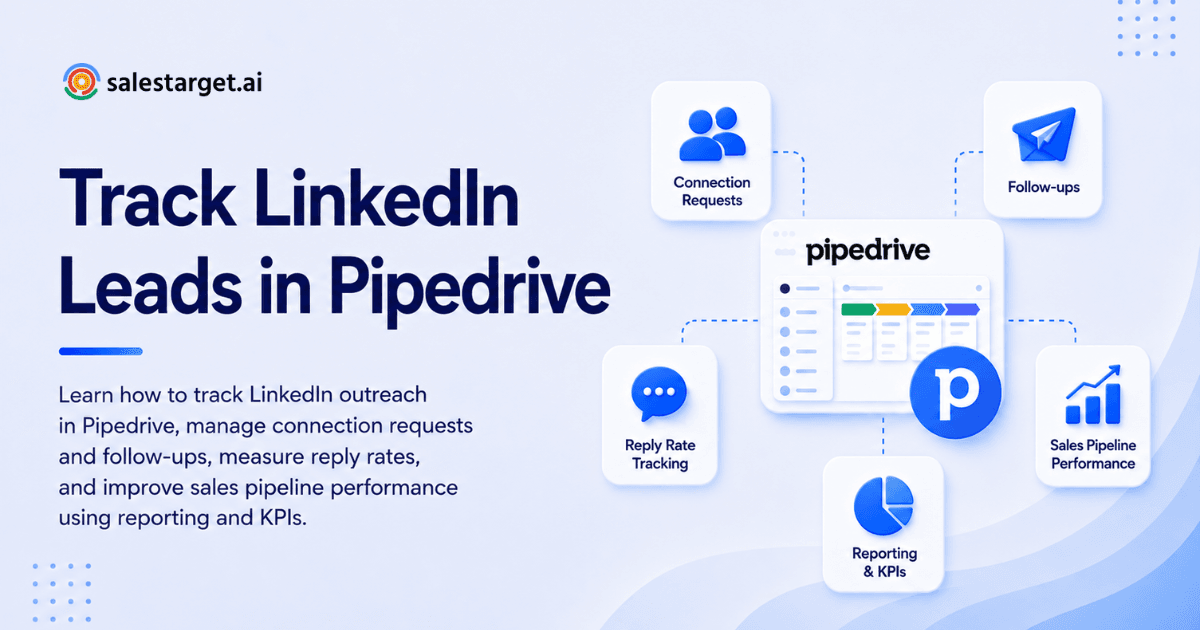
If you're prospecting on LinkedIn and closing in on Pipedrive, you've probably hit the same wall every outbound team hits eventually: LinkedIn is where the conversations happen, but Pipedrive is where accountability lives. The practical question is how to get LinkedIn outreach tracking in Pipedrive working well enough that connection requests, DMs, replies, and follow-ups don't quietly fall through the cracks.
Yes, you can build reliable LinkedIn outreach tracking in Pipedrive — just not through a single native "LinkedIn inbox" view. It comes together through a mix of pipeline structure, Activities, custom fields, and (optionally) a purpose-built LinkedIn outreach tool that feeds clean data back into your CRM.
This guide walks through the setup, the metrics worth watching, and the mistakes that quietly wreck most teams' LinkedIn lead tracking before they even notice.
Why LinkedIn outreach tracking breaks down without a system
LinkedIn outreach is deceptively easy to start and surprisingly hard to operationalize. The usual failure modes look familiar:
- A rep sends a message and forgets to follow up
- Two reps message the same prospect within a week of each other
- "Warm" conversations never get moved into an actual deal stage
- Nobody can answer how to measure LinkedIn outreach success beyond "we sent a lot of messages"
Fixing this requires LinkedIn lead tracking to live inside a real system of record — and for most sales teams already running pipeline stages and activity reporting, that system is Pipedrive.
What you can (and can't) track natively in Pipedrive
What Pipedrive handles well out of the box
With the right setup, Pipedrive can reliably track:
- Who you targeted (person and company)
- Outreach status — attempted, contacted, replied, booked, disqualified
- Follow-up scheduling via Activities and due dates
- Outreach channel and sequence step, via custom fields
- Conversation outcomes and next actions, via notes
- Down-funnel results — deals created, won, or lost
That's the foundation of solid LinkedIn outreach tracking in Pipedrive.
What it won't do without extra help
Pipedrive does not natively pull LinkedIn DMs into threads, track connection requests automatically, or calculate response time and acceptance rate on its own. Closing that gap takes either a careful tool stack or a lightweight manual workflow — both covered below.
Setting up Pipedrive for LinkedIn outreach tracking
Step 1: Build a LinkedIn-specific pipeline (or segment your existing one)
You have two reasonable options: a dedicated "LinkedIn Prospecting" pipeline, or your existing sales pipeline with fields and filters that isolate LinkedIn-sourced prospects.
A workable stage structure for LinkedIn outreach management looks like this:
- Identified (LinkedIn)
- Connection Requested
- Connected
- Message Sent
- Replied
- Meeting Booked
- Qualified → Main Sales Pipeline
- Not a Fit / No Response
This structure alone solves most of "how do I organize LinkedIn leads" — everything has a home instead of floating in someone's inbox.
Step 2: Add custom fields for reporting and dedupe
At the Person or Deal level, add:
- Lead Source (dropdown: LinkedIn, Referral, Inbound, Event)
- LinkedIn URL (text/URL field — this is what makes profiles uniquely identifiable)
- Outreach Owner (user field)
- Outreach Sequence Step (Connect, DM1, DM2, Value Share, CTA)
- Last LinkedIn Touch (date)
- Next LinkedIn Follow-Up Date (date)
- Connection Status (Requested / Accepted / Not accepted)
- Do Not Contact Reason (Not ICP / Competitor / Already customer / Asked to stop)
These fields are what make LinkedIn follow-up tracking and LinkedIn connection tracking actually queryable later, instead of buried in notes.
Step 3: Use Activities as your LinkedIn follow-up system
Treat every LinkedIn touch like a call. Create Activity types for LinkedIn – Connect, LinkedIn – Message, LinkedIn – Follow-Up, and LinkedIn – Nurture, and enforce one rule across the team: every outreach action logs an Activity, and every completed Activity creates the next one.
If you sent a message today, the next follow-up Activity should already be scheduled 2–4 business days out. That single habit is most of what a LinkedIn message follow-up system actually is.
How to track LinkedIn connection requests in Pipedrive
This is the most common operational question teams ask, and there's no perfect native integration for it — but there are three practical methods.
Method 1 - stage + Activity (most reliable). Send the request, move the record to Connection Requested, mark the "LinkedIn Connect" Activity done, and create a "Check acceptance" Activity due in 3–7 days. When it's accepted, move the record to Connected and schedule "Send DM1."
Method 2 - a Connection Status field. Set it to Requested when sent, then update to Accepted later. Useful if you'd rather keep everything in one stage but still need reportable status.
Method 3 - a LinkedIn outreach spreadsheet template, as a bridge only. If your team is mid-migration, a simple spreadsheet (name, LinkedIn URL, status, last touch, next follow-up, owner) can hold things together temporarily. It introduces duplication fast, though, so treat it as training wheels and migrate fully into Pipedrive once your process stabilizes.
LinkedIn outreach CRM integration: what it actually means
"LinkedIn outreach CRM integration" gets used to mean three different things: lead capture (contacts flow into the CRM), activity logging (touches become tasks and notes), or full message sync (LinkedIn DM threads mirrored inside the CRM). For most teams, the real win is the second one — consistent, structured activity logging and follow-up scheduling that doesn't depend on anyone remembering anything.
LinkedIn outreach tools vs. manual tracking: how to decide
Some teams want speed, others want account safety, and the honest framework is simpler than it sounds: your CRM should be the source of truth for pipeline, ownership, reporting, and dedupe. Your LinkedIn outreach tool — if you use one — should handle sending assistance, sequencing, and reminders. Neither should try to be the other.
If you'd rather not add outreach automation software at all, a few alternatives hold up well:
- A strict, activity-based follow-up cadence in Pipedrive
- Saved (but manually personalized) message templates
- A daily "LinkedIn Follow-Ups Due Today" list view
- Controlled daily batching — for example, 20 new connects and 20 follow-ups per day
These protect deliverability and force better personalization, which matters more than it sounds: Expandi's 2026 benchmark study of 13.2 million connection requests and follow-up messages found platform-wide averages of roughly 28.5% connection acceptance and 10.4% message reply — and that software/SaaS senders specifically land closer to the bottom of that range. Volume without quality control is a fast way to underperform your own vertical's benchmark.
If you do bring in sequencing software, our guide to combining LinkedIn Sales Navigator filters with outreach automation covers how to keep targeting tight instead of just increasing send volume.
Automating follow-ups without risking your account
The safest automation is task automation, not message automation. Inside Pipedrive, workflow rules can trigger the next step without touching LinkedIn directly — for example: stage changes to Connected → create "Send DM1" due today; "LinkedIn – Message" Activity completed → create "Follow-up" due in 3 days; deal marked Replied → create "Qualify reply" due today.
If part of your sequencing does run through a LinkedIn Outreach platform, keep volumes conservative, avoid identical repeated templates, and review AI-personalized openers before they send — a discipline covered in more depth in our piece on writing LinkedIn openers that don't read like automation.
The metrics that actually matter for LinkedIn outreach
"We sent 500 DMs" isn't a KPI if meetings aren't rising alongside it, it's a warning sign, not a result. The numbers worth watching are the ones that track a prospect's actual movement through your pipeline, and each one maps cleanly to something Pipedrive already tracks.
Connection acceptance rate is simply accepted requests divided by requests sent, and you can pull it straight from how many records move from Connection Requested into Connected. Reply rate works the same way — replies divided by messages sent — and shows up either as movement into a "Replied" stage or a dedicated Replied? field. Not every reply is worth the same, though, so it's worth separating out positive reply rate: positive replies divided by total replies, tracked through a Reply Sentiment field (Positive/Neutral/Negative) rather than lumping every response together.
Further down the funnel, meeting booked rate — meetings divided by replies, or by messages sent if you want the fuller picture — comes from your "Meeting" Activity type or a Meeting Booked stage. Qualified rate narrows that further: qualified prospects divided by meetings held, tracked through your qualification stage or deal status. And the metric that ties it all back to the business, revenue influence, comes from filtering Deals by Lead Source = LinkedIn to see what actually closed.
For teams that want to go deeper, a few additional LinkedIn engagement metrics are worth adding as custom fields: time-to-first-reply, how many follow-ups it typically takes before someone responds, which message angle or value-prop category performs best, and how results vary by segment — industry, title, company size. Even directional data here helps you spot what's actually driving replies instead of guessing.
For context on what's realistic to aim for: platform-wide data across millions of LinkedIn touches puts connection-note reply rates in the low single digits and overall message reply rates around 10%, with wide swings by industry and seniority — so benchmark your own numbers against your specific vertical rather than a generic average.
Building a reporting setup around LinkedIn lead tracking
A few dashboards cover most of what you need: new LinkedIn leads added per week (Person created + Lead Source), stage conversion from Connection Requested through Meeting Booked, Activities completed by type, meetings booked filtered by Lead Source, and deals won from LinkedIn (value, win rate, cycle length).
None of this works if naming is inconsistent. Keep Activity types and field values standardized, and get the whole team using the same definitions — otherwise your LinkedIn outreach reporting turns into noise fast.
Keeping LinkedIn outreach organized across a team
Duplicate outreach happens fast, even on small teams. A short dedupe and ownership checklist prevents most of it: one owner per Person, a required Outreach Owner field, a required Outreach Status field, a required LinkedIn URL field (so profiles are uniquely identifiable), and a visible "currently in sequence" flag.
Pair that with a clear do-not-contact process — a DNC checkbox, reason field, and date — so opt-outs are respected and your outreach stays compliant.
Sales Navigator + Pipedrive: a workable division of labor
Many teams use LinkedIn Sales Navigator for list-building and signal monitoring, then hand execution and accountability to Pipedrive: build lists in Sales Navigator, add leads into Pipedrive, assign an owner and outreach stage, run the cadence through Activities, and move qualified prospects into the main pipeline. It's a clean split — targeting in one tool, execution and reporting in the other. Our breakdown of managing LinkedIn campaigns around LinkedIn Events is a useful next read if event-based prospecting is part of your mix.
A practical LinkedIn outreach cadence to track as Activities
A cadence that works for most B2B motions, mapped directly to Pipedrive Activities:
- Day 0: Connection request, with a short note only where it's genuinely relevant
- Day 1 (after acceptance): DM1 - context, relevance, a soft question
- Day 4: Follow-up 1 - add value, no pressure
- Day 9: Follow-up 2 - share a resource or insight
- Day 14: Close-the-loop message — polite exit, permission to reconnect later
Each step is a stage update (optional), a completed Activity, and the next Activity scheduled. That loop is what lets you later analyze how many touches actually drive a reply.
Common mistakes that quietly break LinkedIn outreach tracking
Logging everything as Notes, with no next step. Notes are useful for context, but without an Activity attached, there's no reminder and no accountability.
No shared definition of "replied" or "qualified." Decide as a team what counts as a reply, a positive reply, and a qualified conversation — otherwise your reporting means something different to every rep.
Treating a spreadsheet as a long-term system. It won't prevent duplicates, won't tie outreach cleanly to revenue, and won't scale past a couple of reps.
Over-automating and under-personalizing. Heavier automation without quality control shows up as lower acceptance rates, thinner replies, and more negative responses — which makes every metric above harder to trust.
Why Choose SalesTarget.ai for LinkedIn Outreach Tracking
Most of the friction in tracking LinkedIn outreach inside a CRM comes from stitching together tools that weren't built to talk to each other: a data provider, a sequencing tool, an email validator, and a CRM, each with its own login and its own version of the truth. SalesTarget.ai is built to remove that stitching entirely.
Lead Explorer gives you 840M+ verified professional profiles and 146M+ business entities to build your target list from, with one-click enrichment for verified email, phone, and mobile before a single message goes out — so the LinkedIn URL and contact fields your tracking system depends on are accurate from the start. Every email address that gets pulled in can be checked through the Lead/Email Validator, which uses MX/SMTP checks and risk scoring to keep bad data out of your pipeline; SalesTarget.ai customers see 90% of emails validated before sending, which matters when validity feeds your reporting downstream.
The LinkedIn Outreach module runs connection requests, DMs, and follow-ups on conditional sequences that branch based on replies or inaction, with timezone-aware scheduling and built-in rate limits and warm-up logic to protect account health — the same discipline the cadence above is built around, just automated. It runs in the same coordinated flow as Email Outreach, so a prospect who doesn't respond on LinkedIn can pick up the thread by email without a rep manually bridging the two.
Where this changes outreach tracking specifically: campaign leads land in the built-in CRM automatically, every touch is logged to the lead timeline without a rep building the Activity by hand, and follow-up tasks generate themselves. SalesTarget.ai customers report 3.2X faster deal cycles and 91% follow-up completion as a result — essentially the "every touch logs an Activity, every Activity creates the next one" discipline this guide describes, minus the manual upkeep. Industry-wide, that discipline compounds: Expandi's benchmark data on outbound follow-up sequences shows that a well-timed second follow-up alone lifts response rates measurably, which is exactly the kind of gain that disappears when follow-ups get missed.
For teams that want to query all of this without building dashboards from scratch, the AI Copilot lets you ask, in plain language, how a campaign is converting or which reps have follow-ups overdue — a faster way to get to the reporting this guide walks through manually.
Getting started
You don't need a complex system to make LinkedIn outreach tracking work in Pipedrive, you need a consistent one. Set up your stages, add the fields that support dedupe and reporting, and enforce the habit of logging and scheduling every Activity. From there, whether you stay fully manual or bring in dedicated LinkedIn outreach software, Pipedrive stays in your system of record for what happened and what's next.
If you'd rather not build the enrichment, validation, and sequencing pieces separately, SalesTarget.ai runs all of it — from finding the lead to logging the follow-up — in one workspace. You can start free and see how it fits your current Pipedrive setup before changing anything.