Your sequence was supposed to go out at 9 a.m. It is now noon, the dashboard shows "queued," and your reps are asking why nobody has replied. Every hour of silence is pipeline you are not building, and the follow-ups that should have landed today are slipping behind a gap you cannot see.
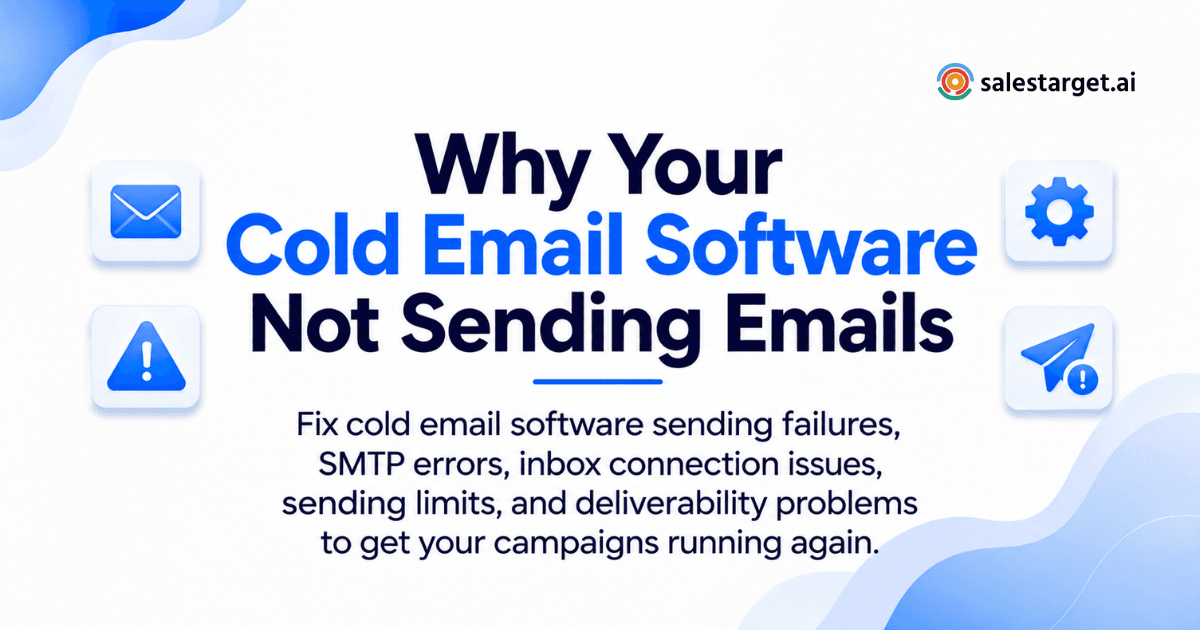
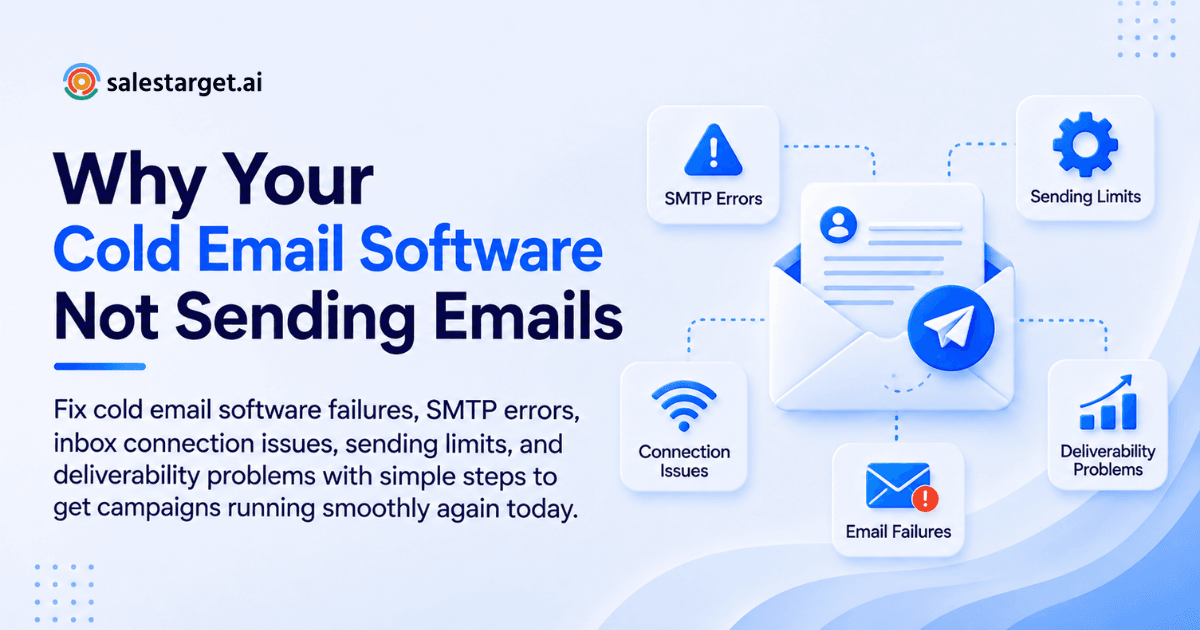
Cold email software stops sending for one of eight reasons: a disconnected inbox, a failed SMTP login, a hit sending cap, a stuck queue, broken SPF/DKIM/DMARC records, a damaged domain reputation, a list full of bad addresses, or a paused campaign. Start by checking whether the mailbox is still connected, then read the error code in your sending log. That code usually names the problem in plain terms. The sections below show you how to read it and fix it.
Cold Email Sending Failures That Disrupt Outbound Pipeline Performance
A sending failure means the message never left your system or was refused by the receiving server. A placement problem means it was delivered but landed in spam. They need different fixes.
Most teams treat every quiet campaign as a "deliverability issue" and start rewriting subject lines. That wastes a week. If the email was never sent, no subject line can help.
Campaigns Paused, Follow-Ups Missed, and Prospects Left Untouched
When sending stops mid-sequence, step one goes out to some prospects and step two never reaches them.
This is the damage nobody sees on a dashboard. A prospect gets your first touch on Monday, and the follow-up that should land Thursday is stuck behind a dead inbox. By the time you fix it, the timing logic is off. Prospects get two emails in one day, or the gap grows so long the first message is forgotten. Good follow-up timing and stop rules only work when the engine keeps running.
Sending Failures vs. Inbox Placement Problems
A sending failure shows an error, a bounce, or a "queued" status. A placement problem shows "sent" or "delivered" with no replies.
Quick test: send one email from the affected mailbox to a personal Gmail and a personal Outlook address. If neither arrives in the inbox or the spam folder within a few minutes, you have a sending problem. If both arrive but land in spam, you have a placement problem. This article covers sending failures first, then the infrastructure habits that stop placement problems from starting.
The Impact of Email Outages on SDR Productivity and Pipeline Coverage
One silent outage can idle a full SDR quota for days, because reps assume the sequence is working.
Reps rarely check the send log. They check the reply folder. If replies drop, they blame the list or the copy and start editing sequences that were never delivered. Agencies feel this harder. A single disconnected client mailbox can sit broken over a weekend, and the client notices before you do. Build a habit: check send counts every morning, not reply counts.
8 Technical Reasons Cold Email Software Stops Sending
These eight causes cover nearly every case. Work through them in this order, from the most common to the least.
Broken Inbox Connections and OAuth Authentication Expiry
Google and Microsoft inboxes connect through OAuth tokens that can expire or get revoked, and the tool stops sending the moment that happens.
Common triggers: a password change, a security alert on the mailbox, an admin policy update, or a token that simply aged out. The mailbox looks fine in Gmail. Inside your software it shows "disconnected" or "authentication required." The fix is to reconnect the account and re-grant permissions. Check this first, because it takes two minutes.
SMTP Authentication Failures and Email Server Rejections
If you connect through SMTP, a wrong password, a missing app password, or a blocked login stops every send from that account.
Many providers now require app-specific passwords, and some disable basic SMTP login entirely. Another trap: two-factor authentication turned on after the mailbox was first connected. The server rejects the old credentials and your tool reports a vague "connection error." Re-enter the credentials and confirm the host, port, and encryption setting match what your provider lists.
Daily Sending Caps and Provider Rate Limits
Every mailbox provider limits how many emails one account can send per day, and your tool stops or delays sending when you reach it.
Google Workspace caps sending at roughly 2,000 messages a day per user, and a free Gmail account sits near 500. Those are ceilings, not targets. Cold outreach should run far below them. The second limit is your tool's own per-inbox cap. If you set 50 a day across 10 inboxes but loaded 2,000 prospects in one day, the rest wait in the queue, which looks like a failure but is just math.
Campaign Queue Backlogs and Scheduling Conflicts
A stuck queue usually means the schedule and the volume do not fit together.
Narrow send windows are the quiet culprit. If your schedule allows sending only between 9 and 11 a.m. in one time zone, and you launch 800 emails at 10:45, most will wait until tomorrow. Overlapping campaigns on one mailbox cause the same issue, because they compete for the same daily slots. Widen the window, spread launches across days, or add inboxes.
SPF, DKIM, and DMARC Configuration Errors
SPF, DKIM, and DMARC are DNS records that prove your emails are really from your domain. Missing or broken records cause rejections.
Google and Yahoo now require authentication from bulk senders, and Google asks senders to keep spam complaint rates below 0.1%. A common mistake is two SPF records on one domain. Only one is allowed, and having two makes SPF fail. Another is adding a new sending service without updating the SPF record to include it. Check records after any DNS change, inbox provider switch, or new tool.
Domain Reputation Decline and Warm-Up Restrictions
A domain with a poor reputation gets throttled or blocked, and a new domain sending too much too fast gets the same treatment.
Reputation drops from high bounce rates, spam complaints, and sudden volume jumps. Providers respond by slowing delivery, deferring messages, or refusing them. If you skipped warm-up on a fresh mailbox, you may see sends fail within days. Pause the campaign, cut volume sharply, and rebuild with gradual ramp-up.
Invalid Recipient Data and Repeated Bounce Signals
Bad email addresses cause hard bounces, and many tools auto-pause an inbox when the bounce rate crosses a safety threshold.
Most deliverability practitioners treat a bounce rate above 2% as a warning sign. If your tool shows "sending paused" on an inbox that looks healthy, check recent bounces. One stale list can trigger it. Verify addresses before upload, not after the damage.
Sequence Logic, Automation Triggers, and Campaign Status Errors
Sometimes the software is fine and the campaign is simply not eligible to send.
Check these: the campaign status is still "active," the start date is not in the future, the prospect has not been marked as replied or unsubscribed, a step condition (such as "send only if previous email opened") is not blocking progress, and the sending account is actually assigned to the campaign. A prospect who replied "not now" three weeks ago may still carry a stop flag that blocks a new sequence.
Cold Email Sending Errors, Their Causes, and the Fixes
Error codes look cryptic, but each family points to a specific kind of problem. Read the first digit and the text after it.
SMTP 421, 450, and 451 Temporary Server Errors
These are temporary refusals. The receiving server is saying "try again later," usually because you are sending too fast or the server is busy.
Cause: too many connections, a sudden volume spike, or a reputation-based slowdown. Fix: lower your hourly send rate, spread sends across more mailboxes, and let the tool retry on its own. If the same temporary error repeats for days, treat it as a reputation signal and cut volume.
SMTP 550 and 554 Rejections and Policy Restrictions
A 550 or 554 is a hard refusal. The message was rejected and will not be retried.
Cause: the address does not exist, your IP or domain is on a blocklist, authentication failed, or the recipient's server flagged the content. Read the text after the code. "User unknown" means a bad address. "Rejected due to policy" or mentions of a blocklist mean a sender problem. Remove bad addresses from your list, and if the text points at your domain, review DNS records and recent complaint rates.
Authentication Failed and Sender Not Authorized Errors
These errors mean the server does not trust that you are allowed to send from this account or domain.
Cause: wrong credentials, an expired token, or SPF and DKIM that do not match the sending service. Fix: reconnect the mailbox, then run a DNS check on the domain. If you use a custom tracking domain, confirm its records too.
Message Queued but Not Delivered Status
"Queued" means your software has the email but has not handed it to the mail server yet.
Cause: daily caps, send windows, inbox rotation limits, or a paused mailbox. Fix: open the queue, find the oldest stuck message, and check which rule is holding it. In most cases a cap or a schedule is the answer, not a bug.
Account Suspended, Sending Disabled, and Provider Blocked Status
The mailbox provider itself has restricted the account. Your cold email tool cannot override that.
Cause: spam complaints, unusual sending patterns, or a policy violation. Fix: log into the mailbox directly, read any provider notice, and follow its recovery steps. Stop all campaigns from that account. Do not reconnect it to another tool and keep blasting. That deepens the restriction.
Cold Email Software Troubleshooting Workflow to Restore Campaign Sending
Follow these six steps in order. Each one rules out a whole category before you move to the next.
Audit Inbox Connections and Sending Account Health
Open your inbox list and look for any account marked disconnected, paused, or flagged. Reconnect them one by one. Send a manual test from the provider's own web interface to confirm the mailbox itself works.
Review SMTP Logs, Bounce Codes, and Server Responses
Pull the last 24 hours of send logs. Sort by error code. If 90% of failures share one code, you have found your cause. If they vary, you likely have several issues stacked together, so fix the authentication and connection errors first.
Check Sending Volume, Throttling, and Scheduled Campaigns
Add up the emails scheduled per mailbox per day and compare that to your caps. Look at send windows and time zones. A common edge case: reps clone campaigns and forget to turn the old one off, so two sequences share one mailbox and eat each other's slots.
Verify Domain DNS Records and Sender Authentication
Look up SPF, DKIM, and DMARC for each sending domain. Confirm one SPF record, a valid DKIM key, and a DMARC policy in place. Re-check after any DNS edit, since changes can take hours to spread.
Clean Prospect Lists and Remove Invalid Email Addresses
Run the list through verification and remove invalid, disposable, and risky addresses. Then resume with a small batch to avoid re-triggering a bounce pause. A bulk email verifier saves you from finding bad data one bounce at a time.
Test a Controlled Send Before Restarting Full Campaigns
Send 20 to 30 emails from one repaired mailbox to a clean, verified segment. Watch for errors for an hour. If the logs are clean, add mailboxes back in stages, not all at once. Restarting at full volume is how a fixed problem becomes a new one.
Email Infrastructure Checks That Prevent Repeat Sending Failures
Most outages repeat. A short weekly routine keeps them from coming back.
Sender Domain Authentication and DNS Record Validation
Set a calendar reminder to check DNS records on every sending domain once a month, and after every tool or provider change. Keep a simple sheet listing each domain, its inboxes, and the date it was last checked. Teams running many domains lose track fast. For a deeper look at evaluating your setup, see this guide on how to evaluate send infrastructure and deliverability.
Mailbox Provider Limits and Sending Infrastructure Health
Know the cap for every provider you use, then set your tool limits well under it. A safe working habit is to treat the provider's cap as a hard ceiling you never approach. Keep a few spare mailboxes warmed and ready, so a suspended account does not stall a campaign.
Inbox Warm-Up, Daily Volume, and Sending Ramp-Up
New mailboxes need a gradual build-up of activity before cold volume starts. Raise daily volume in small steps and hold steady if bounces or complaints tick up. Never jump from 10 to 100 a day because a campaign is behind schedule. The delay costs less than a throttled domain.
Bounce Monitoring and Domain Reputation Maintenance
Review bounce rate per inbox every week, not just per campaign. One weak mailbox can hide inside a healthy average. Retire any inbox whose bounce rate keeps rising after list cleaning, and keep spam complaints well under Google's published threshold.
Cold Email Software Capabilities That Keep Outbound Campaigns Running
The right software prevents most of these failures before you see them. Here is what to look for.
Connected Inbox Monitoring and Account Health Checks
Your tool should show the connection status of every mailbox on one screen and alert you when one drops. If you have to open each account to find out, you will find out late.
Automated Sending Controls and Campaign Scheduling
Look for per-inbox daily limits, inbox rotation, and time-zone-aware windows. These controls spread load across mailboxes and stop one account from carrying everything. The playbook for scaled teams covers how larger teams set these up.
Email Verification Before Outreach Launch
Verification should happen before a prospect enters a sequence, not as a separate cleanup task. Checks should include MX and SMTP validation, disposable-address detection, and risk scoring.
Warm-Up and Deliverability Monitoring
Built-in warm-up, plus ongoing SPF, DKIM, and DMARC checks, saves you from running DNS audits by hand. It also gives early warning when reputation starts to slip.
Campaign Analytics, Error Visibility, and Sequence Management
You need to see errors in plain language, by inbox and by campaign. A dashboard that only shows opens and replies hides the exact numbers you need on a bad morning: sent, failed, queued, and bounced.
Why Choose Salestarget.ai for Reliable Cold Email Outreach
Salestarget.ai is an all-in-one outbound platform. It finds leads, verifies them, sends sequences across email and LinkedIn, and tracks deals in one workspace, so fewer tools means fewer places for sending to break.
Sending failures often come from the gaps between tools: a list exported from one app, cleaned in another, and loaded into a third. Each handoff is a chance for stale or invalid data to slip through.
Find and Enrich B2B Prospects With Lead Explorer
Lead Explorer searches 840M+ verified professional profiles and 146M+ business entities. One-click enrichment returns verified email, phone, and mobile at the moment you find the lead, so contacts are checked when you need them, not when the data was first collected. Leads go straight into a sequence with no CSV step, which removes a common source of bad uploads.
Manage Email and LinkedIn Outreach From One Platform
Email Outreach supports unlimited inboxes with automatic AI warm-up, intelligent inbox rotation, and SPF, DKIM, and DMARC checks. Rotation spreads volume so no single mailbox hits a cap alone. LinkedIn Outreach runs in the same flow, with rate limits and auto-pause safeguards, so a stalled email step can be backed by a connection request or DM instead of silence. Soft next step: connect one mailbox and run a test send before moving the rest.
Protect Campaign Quality With Email Validation and Deliverability Checks
The Email Validator runs MX and SMTP checks, flags disposable addresses, and scores risk before you send. Cutting bad addresses at the door is the most direct way to keep bounce rates low and avoid automatic inbox pauses. On the Email Outreach side, 90% of emails are validated before sending.
Manage Prospects, Replies, and Follow-Ups in the Built-In CRM
The CRM logs every email and call to the lead timeline and creates follow-up tasks automatically when a lead replies. If a send fails, the lead's record shows what actually went out, so reps stop guessing. Teams report a 91% follow-up completion rate and about six hours saved per rep per week.
Simplify Sales Workflows With AI Copilot
The AI Copilot is a conversational teammate inside the platform. Ask it to build a sequence from a plain-English audience description, pull campaign results, or list leads that stalled. It surfaces the numbers behind a quiet campaign in seconds, so you spend time fixing the cause instead of hunting for it.
Final Takeaway on Fixing Cold Email Sending Issues and Maintaining Campaign Performance
When cold email software stops sending, the answer is almost always sitting in a log or a settings page: a dropped connection, a cap, a bad DNS record, or a list that needed cleaning. Check the connection first, read the error code second, and restart in small, controlled batches.
The better fix is a setup where those failures are rare and visible. Salestarget.ai keeps data, verification, outreach, warm-up, and CRM in one place, so you see problems early and your pipeline keeps moving. Ready to stop guessing why campaigns went quiet? Start with Salestarget.ai and send your first verified sequence this week.