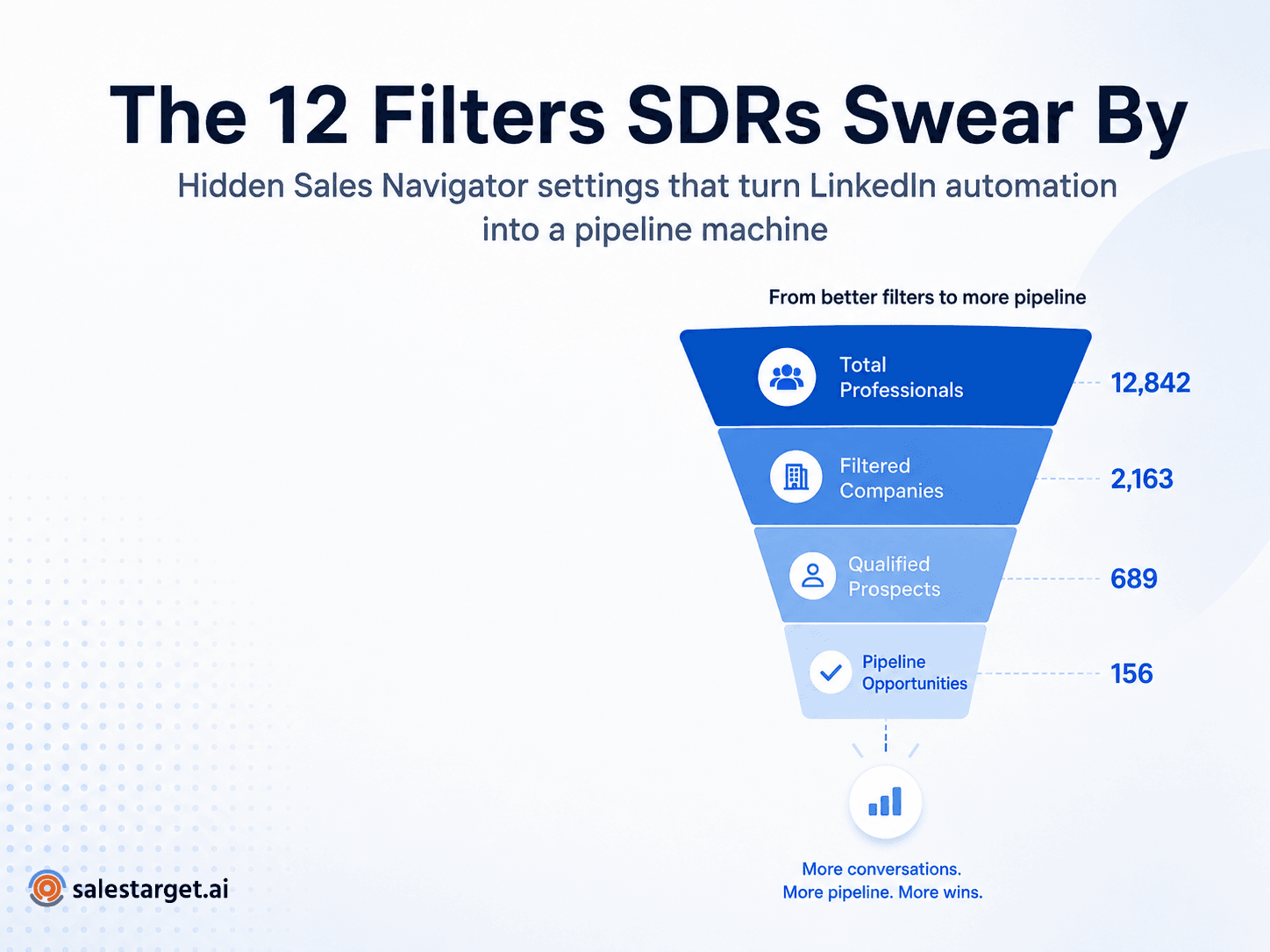
The SDRs who consistently hit quota are rarely the ones with the biggest lists. They are the ones with the most precise ones. Before you touch a LinkedIn Automation sequence, the deciding factor in whether replies come back is how well your Sales Navigator search reflects the accounts and people actually likely to buy. Filters are the lever. Most teams pull two or three and stop.
Top SDRs combine Sales Navigator filters like Years in Current Position, Company Headcount Growth, Recent Job Changes, Posted on LinkedIn, and Past Company to isolate buyers with timing on their side. Better targeting shrinks the list, sharpens personalization, and makes any LinkedIn Automation Tool measurably more effective.
Two failure modes explain most weak LinkedIn Outreach. The first is under-filtering: an SDR searches on job title and location, ends up with 8,000 profiles, and treats the list as if every contact deserves the same message. The second is over-filtering: stacking twelve criteria that shrink the list to 40 people, half of whom moved companies six months ago. Neither list produces consistent replies.
Sales Navigator filters exist to translate an ICP into a queryable search. If the ICP is fuzzy, the search will be too. Precision here compounds — a tighter list means more time per prospect, better personalization, and cleaner data feeding your linkedin sales automation workflows downstream. The 12 filters below are the ones we see repeatedly used by SDRs who book meetings while the rest of the team blames the market.
The 12 Sales Navigator Filters That Actually Matter
1. Years in Current Position
What it does
Narrows a search to people who have held their current role within a chosen time window.
Why SDRs overlook it
Most reps assume anyone in the role is fair game and skip this filter entirely.
How top-performing SDRs use it
They separate freshly-promoted buyers (0–1 year) from entrenched veterans (5+ years). New leaders are often building their vendor stack; long-tenured leaders usually need a real triggering event.
Example
A newly promoted VP of RevOps at a Series C SaaS company is a very different conversation than a VP who has held the role since 2019.
Automation implication
Pair this filter with a personalized opening in your LinkedIn Outreach cadence — referencing the timing of the role change instantly makes the message feel written, not automated.
2. Years at Current Company
What it does
Filters prospects by how long they have been at their current employer, regardless of role.
Why SDRs overlook it
It looks similar to Years in Current Position, so reps use one or the other and miss the combination.
How top-performing SDRs use it
They flag people in month 4–14, when someone has finished onboarding but is still shaping how the team runs.
Example
A director who joined 8 months ago is often mid-way through evaluating tooling their predecessor left behind. That is a very open door.
Automation implication
Timing signals help any LinkedIn Automation Platform sequence: the message tone shifts from cold to relevant when the SDR can allude to a specific window in the buyer's tenure.
3. Recent Job Changes
What it does
Surfaces prospects who have changed jobs within a recent window, where available in your Sales Navigator plan.
Why SDRs overlook it
SDRs chase title changes on their own connections but rarely build a repeatable search around this signal.
How top-performing SDRs use it
They build a saved search of ICP-fit titles who changed jobs in the last 90 days and review it weekly. New hires often bring vendor preferences with them.
Example
A Head of Growth who just moved from a portfolio company to a new startup is very likely to bring the tools they liked at the last shop.
Automation implication
Job-change lists work extremely well as an ongoing feed into a sales prospecting tool because the signal is fresh and the message practically writes itself.
4. Posted on LinkedIn
What it does
Restricts results to people who have recently posted on the platform, depending on your Sales Navigator plan.
Why SDRs overlook it
SDRs assume active posters are a small subset and skip the filter to keep the list larger.
How top-performing SDRs use it
They use it to find prospects whose posts reveal current priorities — layoffs, hiring, a product launch, a POV on the category. The post itself becomes the opener.
Example
A Head of Sales posting about pipeline coverage this quarter is telegraphing exactly what they are worried about.
Automation implication
If you are running automated LinkedIn outreach workflows that generate replies on autopilot, segmenting active posters into their own cadence lets you reference a specific post rather than sending a generic first line.
5. Company Headcount Growth
What it does
Filters companies by how much their headcount has grown over a chosen period.
Why SDRs overlook it
It sits at the company level, and many SDRs jump straight to people filters.
How top-performing SDRs use it
They isolate companies growing 15–40% year over year — the band where scaling pain typically forces new tooling decisions without the deal getting stuck in enterprise procurement.
Example
A 180-person company that grew 30% in the last year almost always has a broken process somewhere. That is the wedge.
Automation implication
Pairing growth data with a sales prospecting software workflow keeps the list focused on companies where change is already happening, which shortens the path to a first meeting.
6. Department Headcount
What it does
Shows how many people work in a specific department at a company.
Why SDRs overlook it
Most reps filter by total company size and never look at the buying team's size.
How top-performing SDRs use it
They set thresholds like 'RevOps team of 3+' or 'Marketing team of 10+' to make sure a champion actually exists inside the account.
Example
Selling a sales enablement tool into a company with one AE and no sales ops person is almost always a waste of a sequence.
Automation implication
Department size is a strong proxy for buying committee complexity and helps you route accounts to the right playbook inside any LinkedIn lead generation tool.
7. Seniority Level + Function Combination
What it does
Combines a seniority band (VP, Director, Manager, etc.) with a function (Sales, Marketing, Engineering, Operations).
Why SDRs overlook it
SDRs default to job title strings and miss people whose titles do not match the exact string they searched.
How top-performing SDRs use it
They use function + seniority to catch non-standard titles — 'Head of GTM,' 'Chief of Staff to the CRO,' 'RevOps Lead' — that keyword searches skip entirely.
Example
Filtering by Function = Sales, Seniority = Director surfaces buyers whose companies use unconventional titling but who still hold the budget.
Automation implication
A cleaner seniority + function segmentation upstream means your LinkedIn Automation sequences do not accidentally address a director as a VP or vice versa — a small detail that visibly hurts reply rates.
8. Past Company
What it does
Lets you filter prospects who previously worked at a specific company.
Why SDRs overlook it
It looks like a filter for referral hunting, and most SDRs limit it to that use.
How top-performing SDRs use it
They target buyers who came from companies that already use their product — familiarity shortens the education phase of the sale.
Example
If your product is popular at Gong, Snowflake, or HubSpot, a search for people who worked there and now sit in ICP-fit roles at other companies is a warm-lead engine.
Automation implication
This filter is also useful defensively: excluding people who came from a competitor helps avoid conversations where the buyer already has an opinion you cannot easily shift.
9. Company Revenue
What it does
Filters companies by revenue band, where LinkedIn provides the data.
Why SDRs overlook it
Revenue data is patchy for private companies, so SDRs give up and use headcount as a proxy.
How top-performing SDRs use it
They use it as a secondary filter to remove obvious mismatches — for example, cutting sub-$1M revenue companies out of an enterprise search.
Example
A saved search of 50–500 employee companies filtered further by $10M–$100M revenue produces a much cleaner mid-market list than headcount alone.
Automation implication
Revenue banding stops your outreach sequences from wasting sends on companies that were never realistically going to buy at your price point.
10. Geography + Company Attribute Combination
What it does
Layers a geographic filter with a company attribute like industry, growth, or headcount.
Why SDRs overlook it
SDRs use geography as a standalone filter for regional territories and rarely combine it with an intent signal.
How top-performing SDRs use it
They build region-specific searches like 'US Northeast, SaaS, 50–200 employees, hiring in sales' to match a rep's territory and current priorities in one pass.
Example
This turns a territory list from a static geographic dump into a shortlist of accounts with something actually going on.
Automation implication
Regional targeting also matters when your team runs email and LinkedIn outreach sequences together — send timing, tone, and references all shift by region, and the segmentation should reflect that.
11. School / Alumni Connections
What it does
Filters prospects by the university or program they attended.
Why SDRs overlook it
It looks like a soft signal, so SDRs dismiss it as fluff.
How top-performing SDRs use it
They use it selectively when a rep shares an alma mater with a prospect — the first line writes itself and reply rates on those specific messages tend to stand out.
Example
An SDR who went to Michigan and messages another Michigan alum with a specific shared reference is not sending a cold email — they are sending a warm one.
Automation implication
Alumni-based segments should stay small and personal. Do not push these through a generic template — they are the segment where a human touch pays back the most.
12. LinkedIn Activity and Relevant Spotlight Signals
What it does
Sales Navigator surfaces activity-based signals through Spotlights and similar features, which vary by plan.
Why SDRs overlook it
Spotlights sit on the side of the search UI and get ignored while SDRs focus on the main filter panel.
How top-performing SDRs use it
They use signals like 'changed jobs,' 'mentioned in the news,' or 'posted on LinkedIn recently' as pre-qualifying layers on top of the ICP search.
Example
A Director of Sales who fits the ICP and was mentioned in the news last week is a materially better prospect than one who fits the ICP alone.
Automation implication
Activity signals give any LinkedIn Automation Platform something concrete to reference in the first message, which is often the difference between a reply and a delete.
Original analysis: what tighter filtering does to an SDR's week
Assume an SDR starts with a broad title-and-industry search returning 5,000 prospects. Layer in Company Headcount Growth (15%+), Years in Current Position (0–2 years), and Posted on LinkedIn (recent). A realistic result set drops to roughly 500–700 prospects. If the SDR previously spent 2 minutes per contact across 5,000 records, they were spread across ~166 hours of surface-level work. Reallocating that time across 600 tightly-filtered prospects allows roughly 16 minutes per person — enough to actually read a profile, reference a recent post, and personalize the opening. Same hours, very different outcome. (Hypothetical example for illustration.)
How to Combine Sales Navigator Filters Into a Prospecting Workflow
Filters only pay off inside a repeatable workflow. Here is the sequence we recommend to SDRs and BDRs building lists that will feed a LinkedIn Automation Tool:
- Define the ICP in writing. Company size, industry, revenue band, geography, and the specific role you actually close.
- Start with company-level filters first: industry, headcount, headcount growth, revenue where available.
- Layer in role and function using seniority + function rather than raw title strings.
- Add timing or intent signals — recent job changes, Posted on LinkedIn, or relevant Spotlights.
- Narrow the list until it feels uncomfortably small. That is usually the right size.
- Review the top 50 prospects manually to sanity-check the filter combination.
- Segment prospects into 2–3 outreach angles based on the signal that qualified them.
- Begin personalized LinkedIn Outreach on the highest-signal segment first.
- Introduce LinkedIn Automation only after messaging and targeting are validated with real replies.
- Monitor reply and acceptance rates weekly and adjust the filters before adjusting the copy.
Scaling this workflow is where most teams get in trouble. Sending more messages faster is not the answer if the list quality drops. Before increasing volume, review safe LinkedIn outreach automation limits and make sure your daily send caps match what LinkedIn tolerates for your account age and plan.
Treat sales prospecting tools as amplifiers, not replacements. A LinkedIn lead generation tool that runs on a bad list will produce more bad conversations, faster. The same tool running on a filtered, segmented list will free the SDR to spend real time on the prospects most likely to convert.
Turn your filtered Sales Navigator lists into consistent outreach
Once your Sales Navigator search is tight, the next lever is execution. SalesTarget.ai lets SDRs automate the repetitive parts of LinkedIn Outreach — connection requests, follow-ups, and multi-touch cadences — without losing the personalization that filtered lists make possible. Scale prospecting without sacrificing targeting, and give your SDRs back the hours they currently lose to manual sends.
→ Automate your LinkedIn outreach with SalesTarget.ai
Automation is not what makes an SDR effective. Targeting is. The 12 filters above exist to translate a real ICP into a real list — the kind small enough to work carefully and specific enough to make each message feel deliberate. Volume comes later, once the search is doing the qualification work upstream. Pick two or three filters from this list you are not currently using, rebuild one saved search around them this week, and compare the reply rate against your existing cadence. That single change is usually enough to see the difference.