TL;DR
- The fastest way to find a professional email is name + company domain lookup — enter both into an email finder and get verified candidates back in seconds.
- Do not guess email formats. Permutation guessing produces 15–25% bounce rates and damages your sending domain.
- Results come with High Confidence (strongest match) or Unknown Confidence (valid pattern, unconfirmed) — always use High Confidence first.
- After finding, verify the result through the Email Verifier before adding to a campaign — 1 credit, takes seconds.
- SalesTarget's Email Finder costs 5 credits per search and returns multiple candidates. No browser extension required.
You've done the research. You know exactly who you need to reach. Their LinkedIn profile is open in another tab. But their email isn't listed — and you're about to start guessing: firstname@company.com, f.lastname@company.com, firstname.lastname@company.com. One of them will probably work. But you won't know which until someone bounces — and by then, the damage to your sending domain is already done.
There's a better method. Here's the exact process for finding a professional email address without guessing — and verifying it before it goes anywhere near a campaign.
Why guessing email formats is a bad idea at scale
Email permutation guessing — constructing addresses from common patterns like firstname@company.com or f.lastname@company.com — feels like a reasonable shortcut. For one or two addresses it might work out. At scale, it's a deliverability problem.
The bounce rate from guessed addresses typically runs 15–25%. Every wrong guess is a hard bounce. Hard bounces damage your sender reputation with Gmail, Outlook, and Yahoo — and the damage compounds. By the time you've sent to 200 guessed addresses and 30–50 of them bounced, your domain is being flagged. Future campaigns from that domain — even to verified addresses — start landing in spam.
The fix is not to guess smarter. It's to look up the address properly before you send.
The hidden cost of one wrong guess
Why it's not just one bounce
A single bounced address on a small sequence doesn't look like much. But inbox providers track bounce patterns across every send from your domain — not just one campaign. Ten guessed addresses across five different sequences is ten data points telling Gmail your domain sends to contacts that don't exist. That pattern builds quietly and then hits all at once when your inbox placement rate drops.
How email finder lookup works
An email finder takes a person's name and their company domain as inputs, searches across verified data sources and known email patterns for that domain, and returns the most likely professional email address — with a confidence level indicating how certain the match is.
This is fundamentally different from guessing. A finder doesn't construct permutations and hope — it cross-references multiple sources, identifies the email format that company actually uses, and returns the address that matches the pattern with the highest evidence.
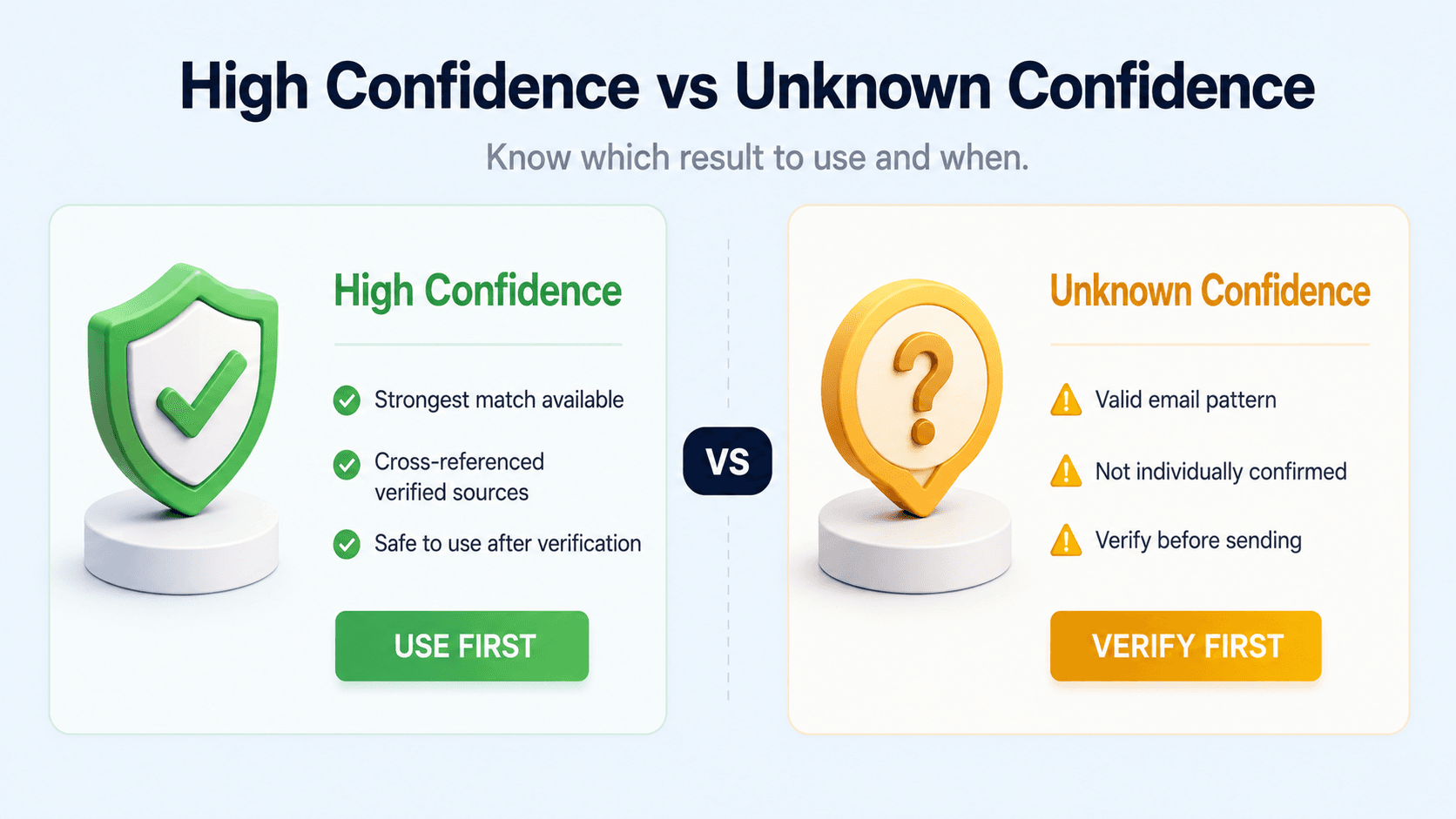
The two confidence levels you'll see in SalesTarget's Email Finder are:
| Confidence level | What it means | What to do |
|---|---|---|
| High Confidence | Strongest match — this is the most likely correct address based on verified sources and confirmed email patterns for this domain | Use this one first. Run through Email Verifier for extra certainty before adding to a campaign. |
| Unknown Confidence | Valid email pattern for this domain — the format is correct but the specific address couldn't be individually confirmed | Run through Email Verifier before using — do not add to a campaign without verification. |
Step-by-step: finding and verifying a professional email in SalesTarget
Step 1 — Get the company domain
You need the domain the company uses for email — usually the same as their website. For most companies this is straightforward: if their website is acme.com, their email domain is acme.com. If you're not sure, check the company's LinkedIn page or website footer. The domain goes into the finder without the https:// prefix — just the domain itself.
Step 2 — Open Email Finder in Lead Validation
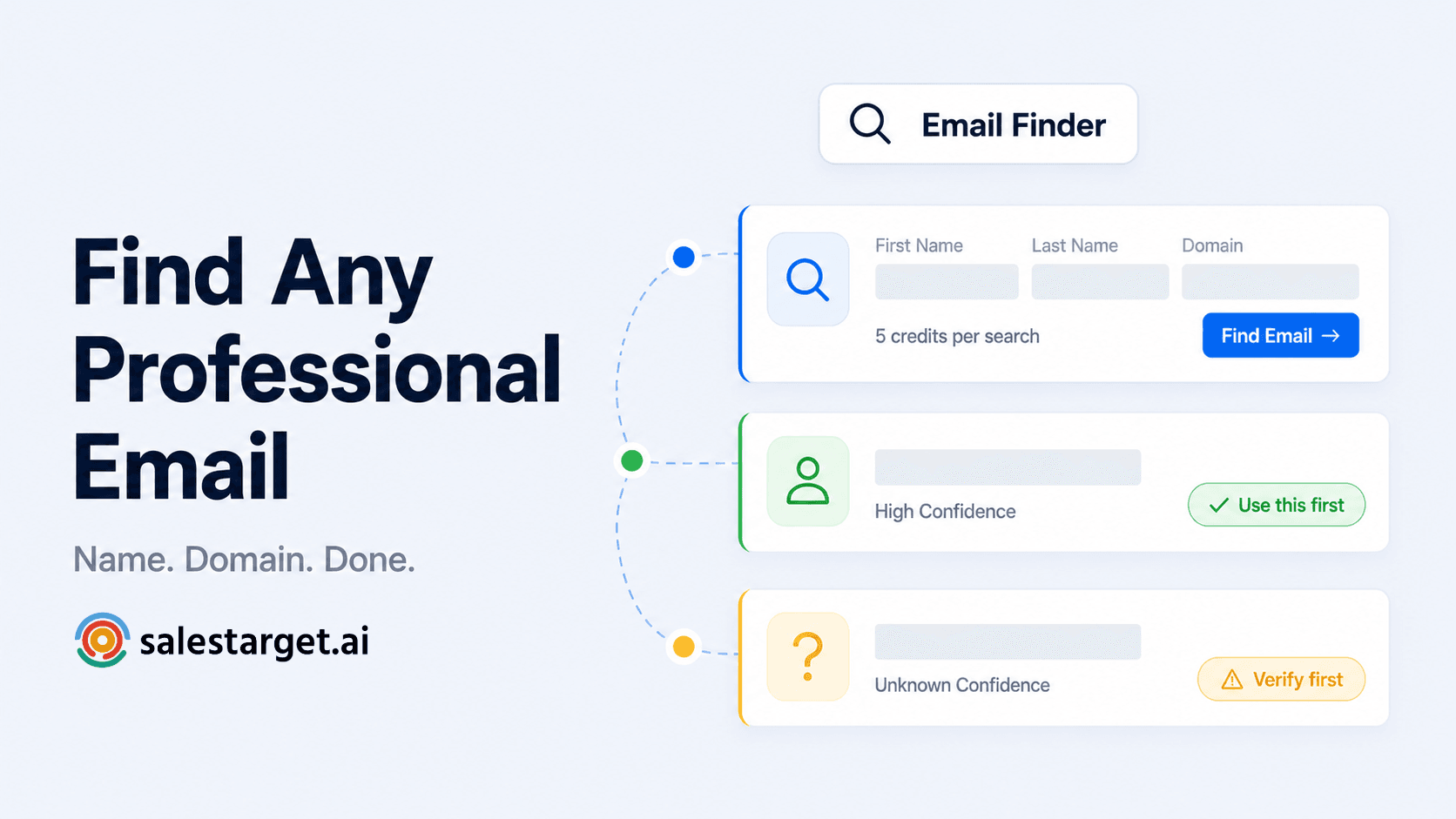
Go to Lead Validation in the SalesTarget sidebar. The Email Finder card is on the right side of the dashboard. You'll see three fields: First Name, Last Name, and Domain.
Step 3 — Enter the name and domain, click Find Email
Fill in the prospect's first name, last name, and company domain. Click Find Email. Results appear in seconds showing all candidates found, with their confidence level and a Copy button on each result. Your credits used and remaining balance are displayed on the results page after each search.
Step 4 — Take the High Confidence result
If a High Confidence result is returned, that's your address. Copy it directly to your clipboard. If only Unknown Confidence results appear, copy the most likely-looking one — but make sure you verify it in the next step before it goes anywhere near a campaign.
Step 5 — Verify the result through Email Verifier
Paste the address into the Email Verifier (the card on the left side of the Lead Validation dashboard). Click Validate Email. The result tells you Format, Type, Email Status, and confidence score. If the result is 100% with Email Status = Valid and Type = Company — you're clear to send. If it comes back at 50% (catch-all) or lower, apply your send/skip judgment based on how high-priority the contact is.
What if you don't have the company domain?
Most of the time the domain is obvious — but occasionally you're working from a contact whose company name doesn't match their email domain exactly (subsidiaries, rebrands, holding companies). Three quick methods to find the right domain:
1. Company LinkedIn page — the website listed on the company's LinkedIn profile almost always shows the email domain in use.
2. Person's LinkedIn profile — if they have a company email listed in their contact info, you can see the domain from there.
3. Company website footer or contact page — almost every company lists a contact email somewhere on their site, which confirms the domain pattern they use.
Credits: what each action costs
Plan accordingly
- Email Finder search — 5 credits per search, returns multiple candidates
- Email Verifier check — 1 credit per address
- For a standard workflow of find + verify: 6 credits total per contact. For the certainty of a verified address before you send, that's the right investment.
Stop guessing. Start finding.
SalesTarget's Email Finder takes a first name, last name, and company domain — and returns verified professional email candidates in seconds. No browser extension. No guesswork.
✓ 50 credits ✓ 7-day trial ✓ No credit card required
Frequently Asked Questions

See It In Action: Book Your Free Demo
Get a personalized walkthrough and see how it works for your team.
Book My Demo →