TL;DR
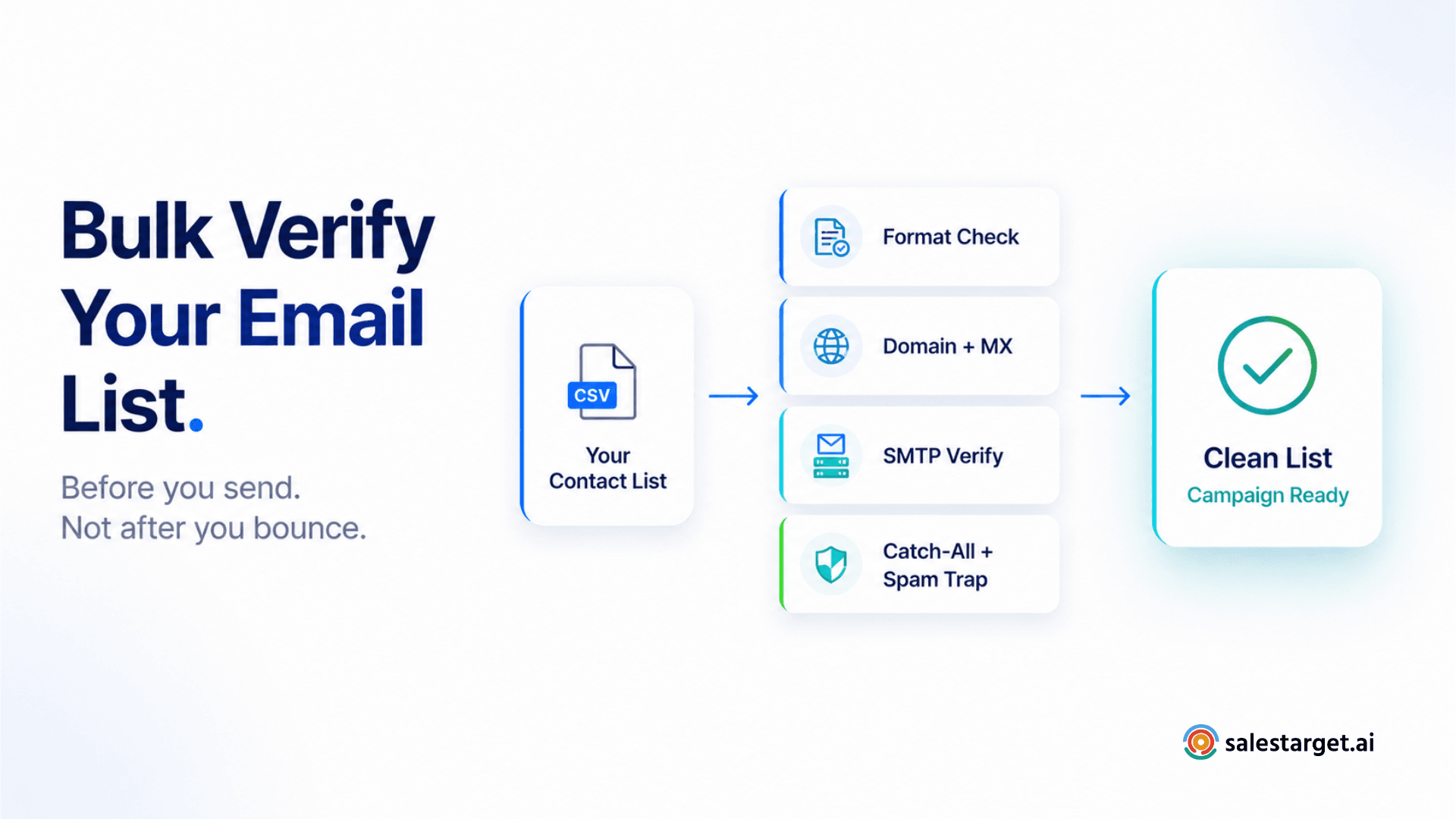
- Bulk email verification processes your entire contact list at once — format, domain, MX record, SMTP, and type classification — returning a results file with status on every row.
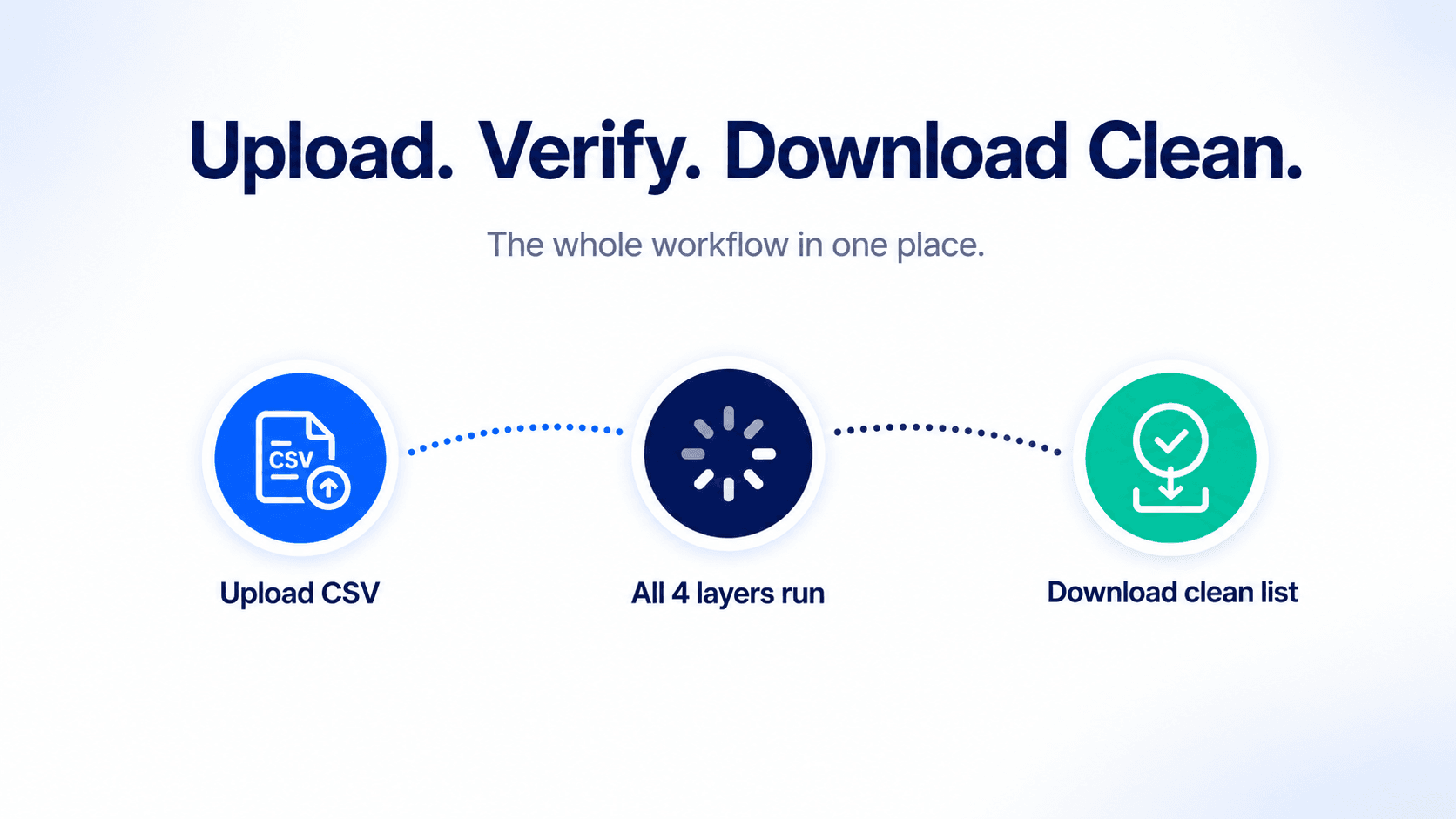
- The four-step workflow: export CSV → upload to bulk verifier → review results by category → download clean list and import to campaign.
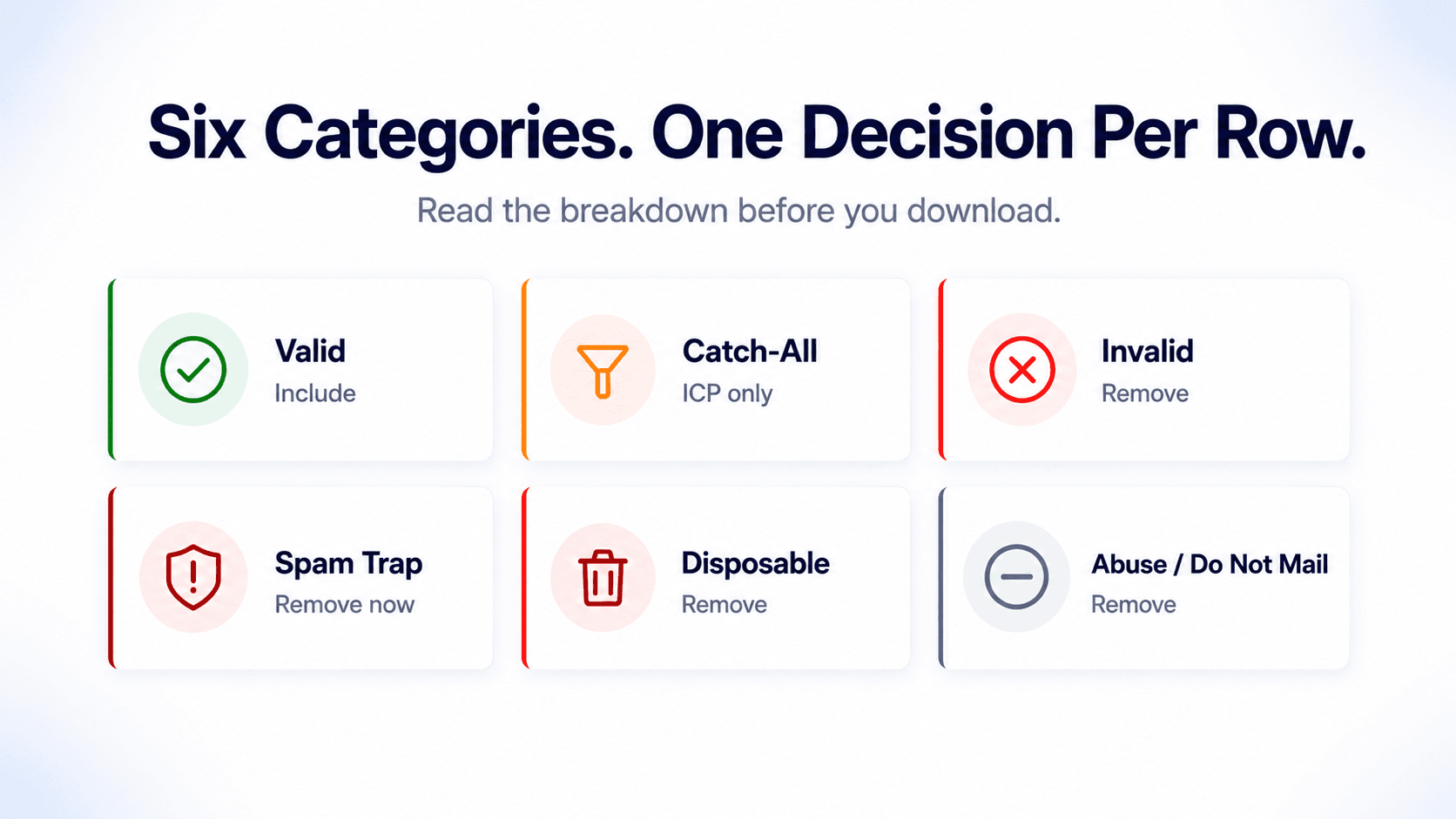
- Results come back in six categories: Valid, Invalid, Catch-All, Spam Trap, Disposable, and Abuse/Do Not Mail. Only Valid addresses go into your campaign.
- Run bulk verification before every major campaign and before using any list older than 90 days.
- SalesTarget's Bulk Email Verifier handles the full process in one upload — no configuration, no manual filtering during the check.
Checking email addresses one by one makes sense for a single high-priority prospect. It makes no sense for a 2,000-contact campaign list. By the time you've manually checked 50 addresses, the meeting you were trying to book has moved on. Bulk verification exists precisely for this — run the entire list through every validation layer simultaneously, get back a clean file, and launch your campaign the same day.
Here's the exact step-by-step process for bulk verifying a contact list before a campaign launch — what gets checked, what the results mean, and how to go from raw CSV to campaign-ready list in one workflow.
Individual vs bulk verification: why the distinction matters for teams
Individual email verification — checking one address at a time — is the right tool for a specific situation: you've identified a high-value prospect, you want to confirm their address before reaching out, and you need the result immediately. One address, one check, one credit, instant answer.
Bulk verification is built for a different scenario entirely. You have a list — sourced from Lead Explorer, a purchased database, a conference badge scan, a CRM export — and you need to know which addresses are worth sending to before your campaign launches. Running individual checks on 500 or 2,000 addresses isn't a workflow. It's a bottleneck.
Bulk verification processes every address in parallel, runs the same complete check on each one (format, domain, MX record, SMTP, type classification), and returns a single results file with status appended to every row. The time difference between checking 50 addresses individually and bulk verifying 5,000 is negligible on the verification side — and dramatic on the human effort side.
| Individual verification | Bulk verification | |
|---|---|---|
| Best for | Single high-priority contact check before outreach | Full campaign list cleaning before launch |
| Input | One email address | CSV file with email column |
| Output | Instant result on screen | Downloadable CSV with status on every row |
| Checks run | All 4 layers — format, domain, MX, SMTP + type | All 4 layers — on every address simultaneously |
| Scale | 1 address at a time | Hundreds to hundreds of thousands |
Step-by-step: bulk verifying an email list before campaign launch
Step 1 — Export your list as a CSV
Export your contact list from wherever it lives — Lead Explorer, your CRM, a purchased database, or a spreadsheet — as a CSV file. The file needs one column labelled email with one address per row. Additional columns (name, company, job title) are fine and will carry through to your results file untouched.
If you know the list has obvious duplicates, removing them before upload saves processing. The system handles duplicates automatically, but starting clean is faster on large lists.
Step 2 — Upload to the Bulk Email Verifier
Go to Lead Validation in the SalesTarget sidebar and click Validate a New List. Give your list a descriptive name — something that identifies the source and date, like "June Campaign — Series B Founders" — then drag your CSV onto the upload area or click to browse and select the file.
Verification starts automatically. Every address in the list goes through all four verification layers in parallel — format check, domain check, MX record check, and SMTP handshake — plus type classification (Company, Personal, Disposable, Spam Trap). A live progress bar shows how far through the list the system is.
For large lists, you can navigate away from the page entirely. The job runs in the background and stays in your dashboard when it completes. No need to keep the tab open.
Step 3 — Review your results by category
When processing completes, your job shows a full breakdown of results before you download anything. Read this before you touch the file. The breakdown tells you about your data quality, not just your current list — and that diagnosis is as important as the clean data itself.
| Category | What it means | What to do |
|---|---|---|
| Valid | Confirmed deliverable — format correct, domain live, SMTP confirmed mailbox exists | Include in your campaign |
| Catch-All | Domain accepts all email — individual mailbox status unconfirmable | Include only for high-priority ICP contacts. Keep under 20% of campaign list. |
| Invalid | Confirmed not deliverable — format error, dead domain, or SMTP confirmed mailbox does not exist | Remove — will hard bounce |
| Spam Trap | Address set up to flag senders with poor list hygiene | Remove immediately — blacklist risk |
| Disposable | Temporary inbox — will expire or already unmonitored | Remove — zero engagement, eventual bounce |
| Abuse / Do Not Mail | Known complaint address or flagged as do-not-contact | Remove — complaint risk |
Diagnose your data source
The Top Verification Failure Reasons breakdown in your results shows why addresses failed — syntax errors, dead servers, disabled inboxes, spam traps. If you're seeing a high spam trap count, your data source has quality problems worth addressing before your next purchase. If most failures are dead servers, your list is old and the companies in it have churned. Cleaning one list without fixing the source means the next list will have the same problems.
Step 4 — Download clean list and import to campaign
Download your results CSV. It contains all your original columns plus a verification status column appended to every row. Open the file and filter the status column to keep only Valid addresses. If you have high-priority ICP contacts in the Catch-All category, you can create a separate segment for those with the understanding they carry more risk.
Remove every row marked Invalid, Spam Trap, Disposable, or Abuse/Do Not Mail. Save your filtered file and import it into your campaign. Your list is now clean. Your bounce rate from this campaign will reflect only addresses that passed all four verification layers.
How often should teams run bulk verification?
B2B email data decays continuously — roughly 1.9% of addresses become invalid every month. A list verified 90 days ago has accumulated approximately 5.5% decay. At 1,000 contacts that's 55 addresses that will bounce. At 10,000 contacts it's 550. The frequency rule is straightforward:
| Situation | When to run bulk verification |
|---|---|
| Before any major campaign launch | Always — no exceptions |
| List older than 90 days | Re-verify before use |
| Any purchased or third-party list | Verify before first use |
| CRM segment dormant 6+ months | Verify before re-engaging |
| Bounce rate exceeded 2% last campaign | Verify entire list immediately |
Check your valid rate before every campaign
Use the dashboard donut chart
The Email Verification Status donut chart on your Lead Validation dashboard shows your cumulative valid vs invalid ratio across all verified lists. A valid rate above 85% is healthy. A rate below 70% signals a data sourcing problem worth investigating before your next campaign. Check it before every launch — it's a leading indicator that shows data quality trends before they become bounce rate problems.
How SalesTarget's Bulk Email Verifier works
SalesTarget's Bulk Email Verifier is built into your Lead Validation dashboard — no integrations, no separate subscription, no API setup. The workflow from upload to download stays entirely inside SalesTarget.
Every address in your uploaded list gets the same complete check: format validation, domain existence, MX record, SMTP mailbox confirmation, and type classification. The system handles duplicates and empty rows automatically. Large lists run in the background — you can close the tab, work on other campaigns, and come back when the job finishes.
The results file preserves your original data structure. Every column you uploaded comes back intact, with verification status added as a new column at the end. Filter by that column in any spreadsheet tool — no reformatting, no manual cross-referencing.
For teams running multiple campaigns simultaneously, each bulk verification job stays in your dashboard with its name, date, and full results breakdown accessible at any time. You can re-download results without rerunning verification. For more detail on individual address checking, see the Email Validation vs Email Verification guide. For the full list cleaning process including how to act on each result category, see How to Clean an Email List Before Sending a Campaign.
Bulk verify your list before your next campaign.
SalesTarget's Bulk Email Verifier processes your entire contact list in one upload — format, domain, SMTP, catch-all, spam trap — and returns a clean CSV ready for your campaign.
✓ 50 credits ✓ 7-day trial ✓ No credit card required